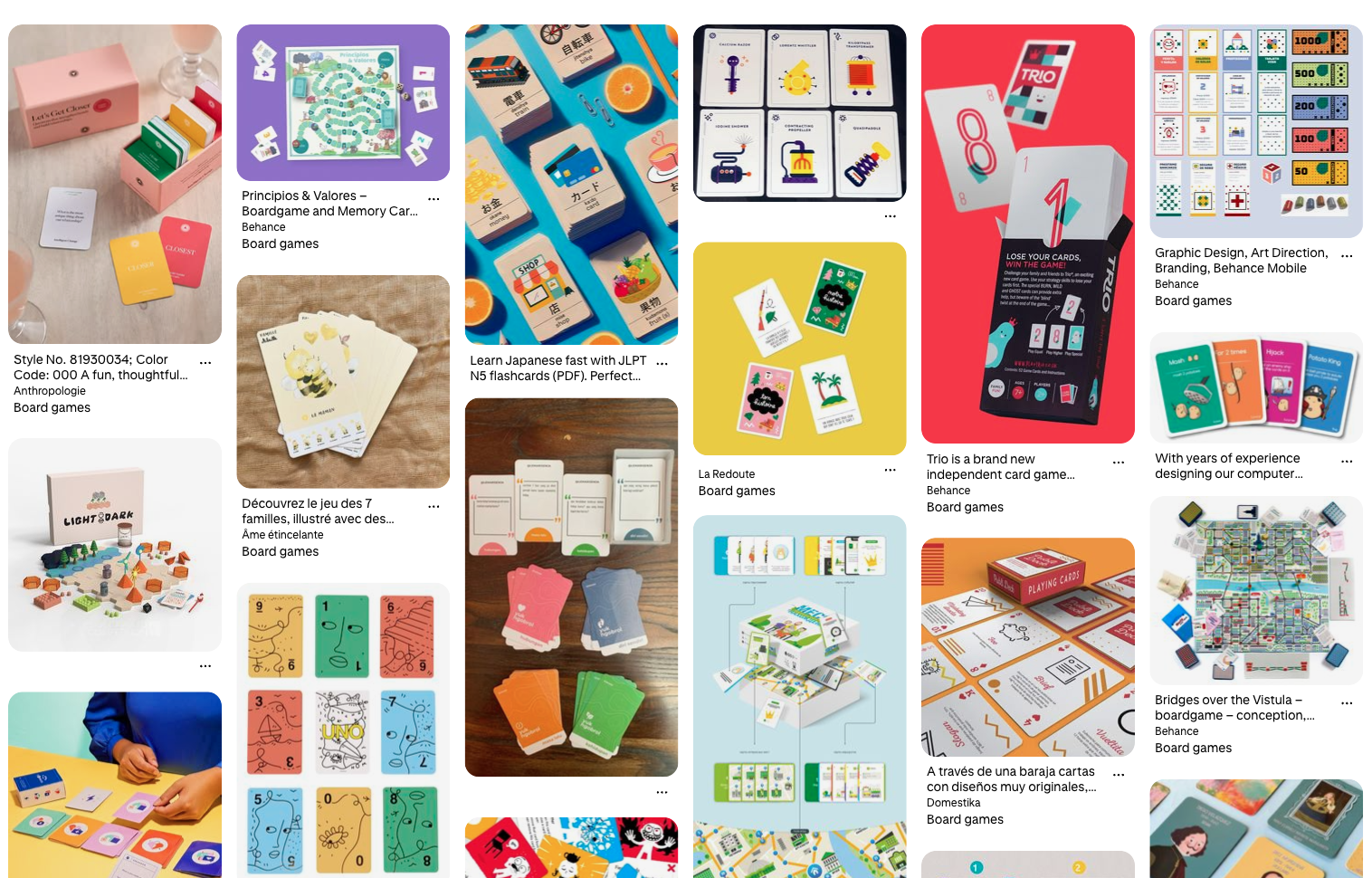
Game Card Templates: Customize, Print, and Play
We create card and educational games every week to test our card creator app (SalutCard), and over time we’ve built a large collection of game card templates. Why not share these designs with others?
Introducing our game card templates that you can not only download and use as-is, but also customize and even use to generate a complete game deck ready for printing. In this guide, I’ll show you how to use SalutCard templates for your own card, educational, and board games.
Don’t forget to save the link to the template project and check back from time to time for new additions. We update it every week.
How to Use Game Card Templates
We provide the templates as a Figma project. Figma is an easy-to-use graphic design editor with a huge community and a free plan that is suitable for most card game projects. It allows you to easily edit templates by dragging and dropping elements, without the need to work with Word documents, presentations, or other formats.
You can also use the SalutCard card game creator to generate cards with different values based on the templates and prepare them for printing at home or through a professional printing service.
Let’s look at how to create cards from the templates:
- Open the template project and choose the designs you like. You can find the project here. The project is created in Figma, which works directly in your browser and doesn’t require a credit card to sign up. If you don’t have a Figma account yet, create one—it only takes a minute.
- (Optional, but recommended) Install the SalutCard plugin. It allows you to generate many cards with the same design but different values and export them as A3/A4 PDF files ready for printing. This can save you days of work, and for some projects, even a week or more.
- Select the templates you want to use in your game and delete the ones you don’t need.
- (If you install the SalutCard plugin) Select a template in the SalutCard window and add as many cards as you need by clicking Add Card and editing the values in the table.
- (If you don’t use the SalutCard plugin) Copy and paste the templates and manually edit the content in the duplicated cards.
- Export the cards as images, or if you’re using SalutCard, export all cards to an A3/A4 PDF by clicking the Export button in the SalutCard plugin window.
How to Print Cards
- If you’re using SalutCard, simply print the exported PDF at home or at a local print shop and cut out the cards. We use the Vaessen Creative 2207-108 paper cutter, but any similar cutter will work. You can also round the corners using a corner cutter from AliExpress or a local craft store.
- If you’re not using SalutCard, export each card as an individual PNG file and arrange the images in another editor that supports exporting groups of images as a PDF with a predefined page size.
We hope these card game templates help you create more games, save valuable time, and focus on game design rather than repetitive manual work.
Feel free to contact us with any questions at [email protected].