This guide is a continuation of our series where we share our experience and advice on how to design your own board, card, and educational games. Today I will show you how to design game cards from scratch. Don’t worry if you don’t have any design skills — it’s not as complicated as you might think. Let’s go, or c’est parti (let’s go in French)!
Game Card Design Elements
If you look at almost any game cards, you will find that they share the same elements:
- Shape (rectangles in most cases)
- Frame
- Illustration
- Text labels with backgrounds
- Stars, coins, and other value indicators
- Additional decorative elements
- Pattern on the back side
In this guide, we will cover how to create all the elements from the list above, except the pattern for the back side. If you’re still confused after you finish this tutorial, don’t worry — you can use our SalutCard templates, where you can edit values, drag and drop template elements, and add or delete elements. Our templates are fully customizable with an easy-to-use interface.
Tools & Design Ideas
To be honest, you can design cards in any graphics editor. However, some editors can be limiting. That’s why we recommend using a tool used by professional designers, plus a plugin that generates cards based on data and exports them as A3/A4 PDFs for printing and production.
In this tutorial, we will use Figma and the SalutCard plugin to generate cards from templates and export them as PDFs for printing. Both tools are free to use and do not require a credit card, so it’s worth trying:
- Open figma.com, create an account, and start a new project
- Install the SalutCard plugin
If it’s not easy to start from a blank project, you can check the links below for inspiration:
- Pinterest, for example our boards with game card designs: https://fr.pinterest.com/salutcard/board-games/
- Board game review videos on YouTube: https://www.youtube.com/@LudovoxFr
Don’t worry about language barriers — you can enable translated subtitles. You don’t need to understand the rules, since you’re only looking for design inspiration. - Board game websites such as boardgamegeek.com
- SalutCard game card templates
Create a Game Card Template
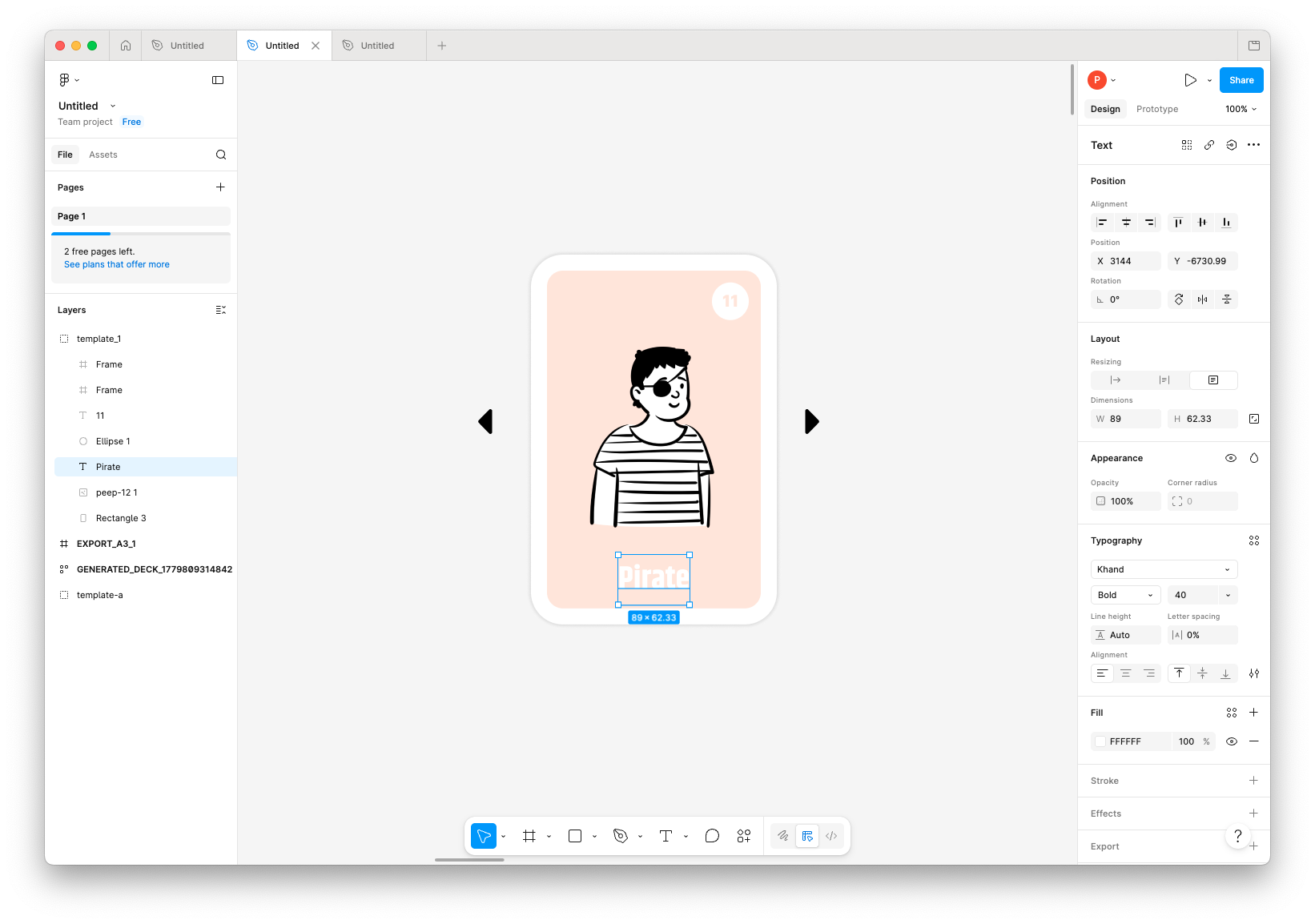
Creating game card templates is as simple as dragging and dropping a few rectangles, adding text labels, and applying styling:
- Open a new project in Figma (see Tools & Design Ideas above) if you haven’t already
- Click the Rectangle tool and draw a shape; set its size. Optionally, you can round the corners for a nicer look. However, we don’t recommend rounded corners for the final printed version, because cutting may be slightly inaccurate, which can leave white edges on cards like in the photo below
- Add a frame to the template
- Add an illustration
- Add text labels
- Add value indicators with icons like coins, stars, etc.
That’s it — your game card template is ready.
Where to Find Illustrations, Graphics, and Icons
We use three main sources of illustrations and icons for our prototypes (and they can also be used for production-ready games):
- https://elements.envato.com/graphics — a website with a huge collection of illustrations. It’s not free, but costs about €14.50/month with a lifetime commercial license for downloaded assets. Search for what you need and create an account if you find suitable graphics.
- Draw Things (for Mac users): allows you to generate an unlimited number of images using AI models with a free account.
- Gemini (paid account required): allows you to create around 50 images per day with a subscription. The best feature is that you can use reference images (e.g., your sketches or other illustrations) to generate new images in a similar style. You can control object placement, style, and colors. Just make sure you have the rights to use any reference images.
Try all options and choose what works best for you. Don’t spend too much time creating perfect illustrations until you’re sure what should appear on your game cards.
Generate Cards from Templates
After you have created your templates, you can generate a full card set for your game. You can do this manually, but it takes a lot of time to copy, paste, edit values, and prepare cards for printing. It also makes updates difficult, since every card must be edited individually.
To solve this, we use our Figma plugin (SalutCard), which generates cards from templates with different values and automatically exports them, including splitting them into A3/A4 PDF pages.
How the plugin works:
- It finds templates in the Figma project (a template is a group in the left sidebar named
template-...) - It detects all labels and images named like
{{label_name}}
To create a card set, you should:
- Add cards to the generated list and edit the text and images for each card by selecting the required template in the plugin window and clicking the Add card button
- Click Generate to create all cards for your game (cards can be split into A3/A4 pages or exported as images)
- If you want to change the card design, edit the template once and click Generate again to recreate all cards
This usually saves a huge amount of time — not hours, but days, based on our experience. It also significantly increases the chance of finishing and releasing the game compared to doing everything manually.
The plugin is free for up to 50 cards and costs $25/year for unlimited cards.
Advice
- Remember that game creation is an iterative process, so don’t try to create a final pixel-perfect design on the first iteration, because you will probably want to change it later
- Print a few cards first to check whether the dimensions feel right or if you want to adjust the size
- Use draft printing mode if you print at home
- Avoid filling cards with large solid colors (for example, making the entire card green or yellow) when printing at home, because this uses a lot of ink. Instead, consider using colored paper
- Whenever you see a card design that inspires you, save the link or a screenshot so you have a reference library for your own designs
If you have any questions, feel free to contact us at [email protected].